.png)
Results - Viewing Student Results & Certificates
1Where can I see my students’ results?
- Go to "Dashboard" and click the competition name.
- Select the round tab: "Preliminary Round", "Semifinal", or "Final". A lock icon means the round has not opened yet.
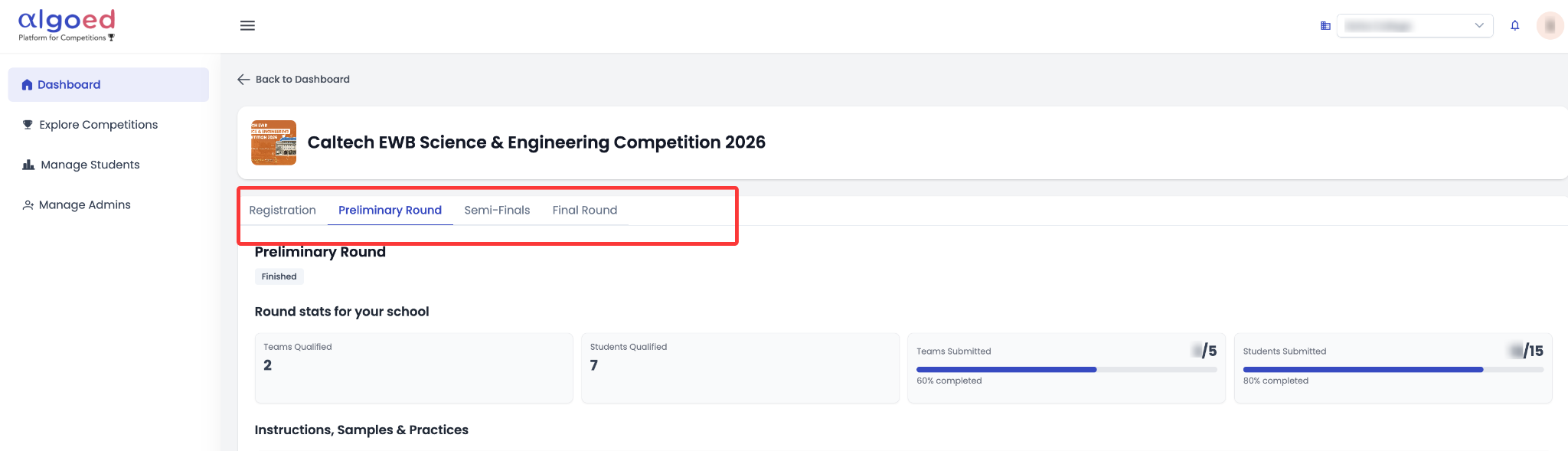
- Scroll down to the "Teams" table.
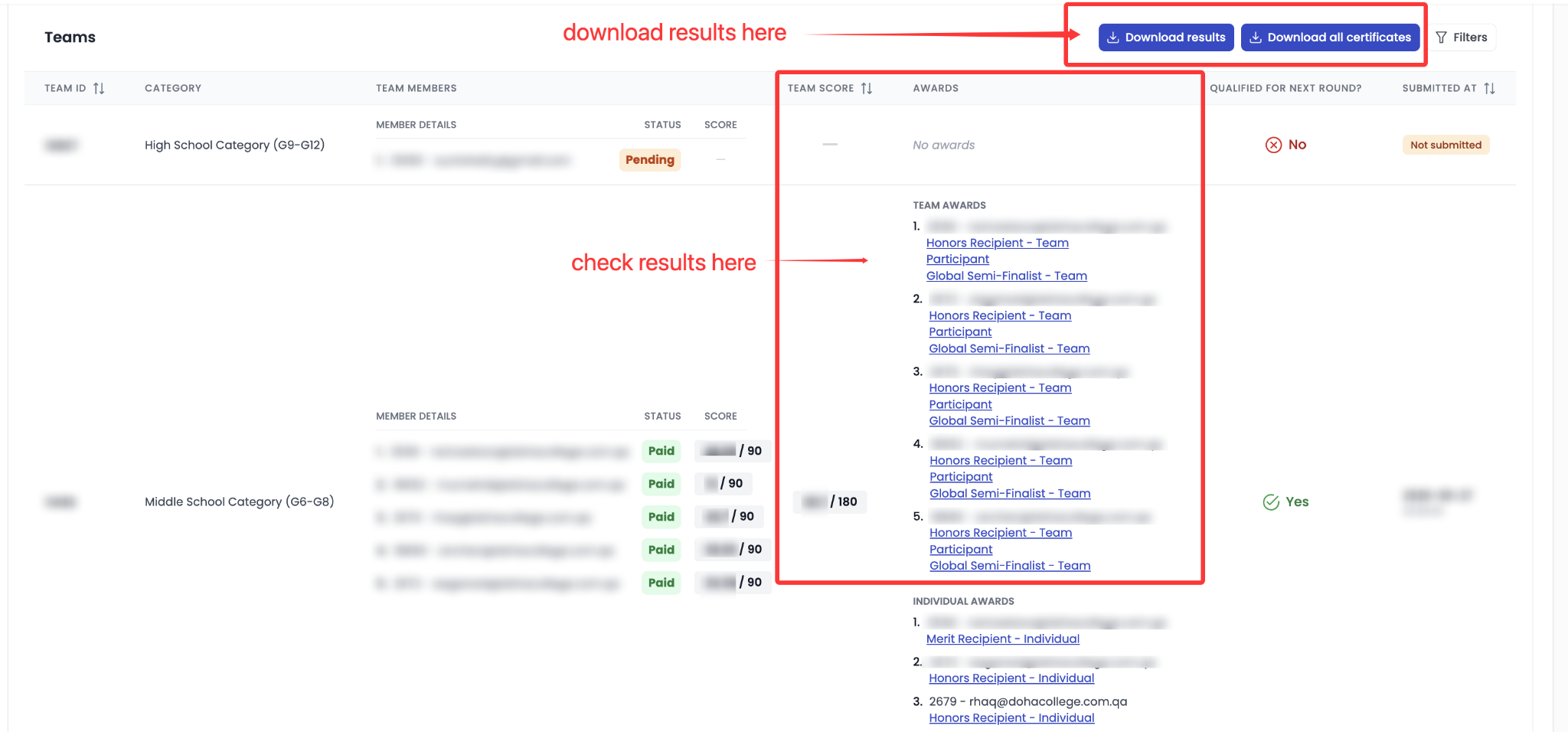
2What information is shown for each round?
The "Round stats for your school" section shows how many teams and students qualified for the next round and how many submitted an entry.

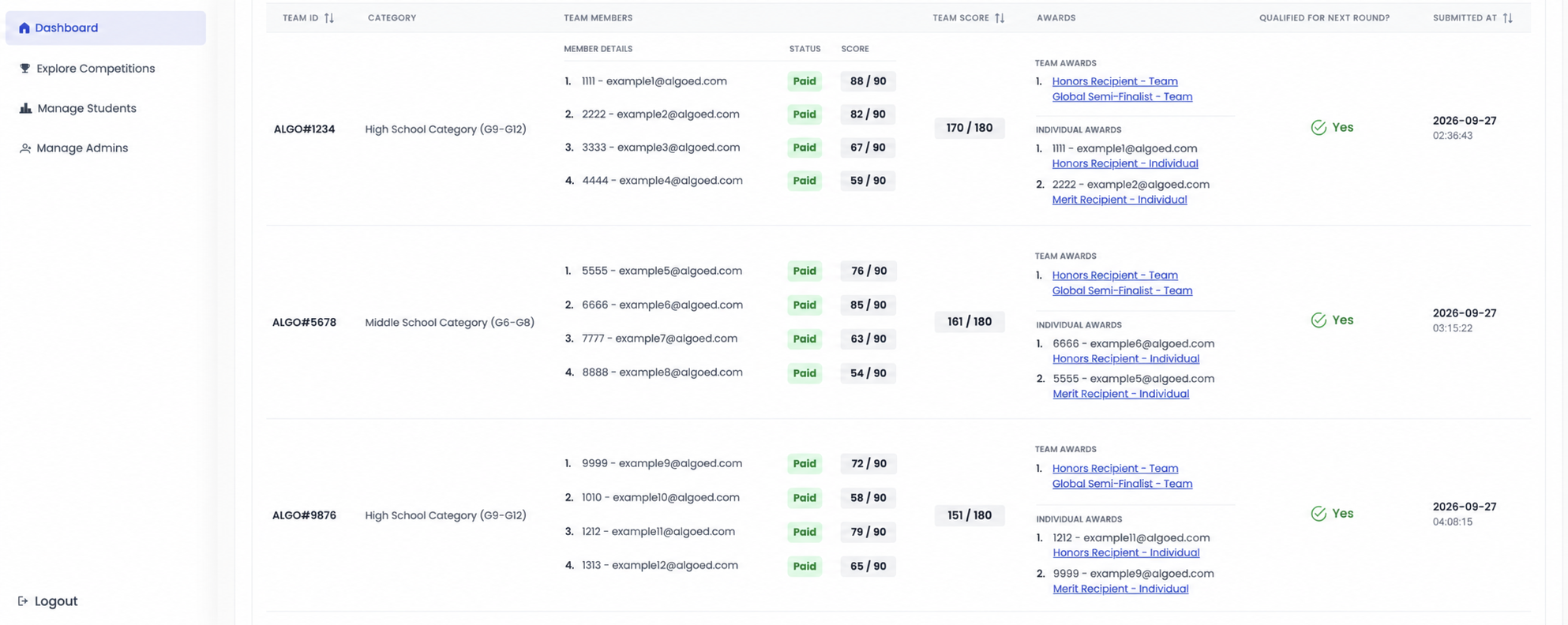
The "Teams" table shows the following information for each team:
- Team ID, category and members
- Team score
- Awards (team awards and individual awards)
- Whether the team qualified for the next round
- Submission time
3How can I download the results?
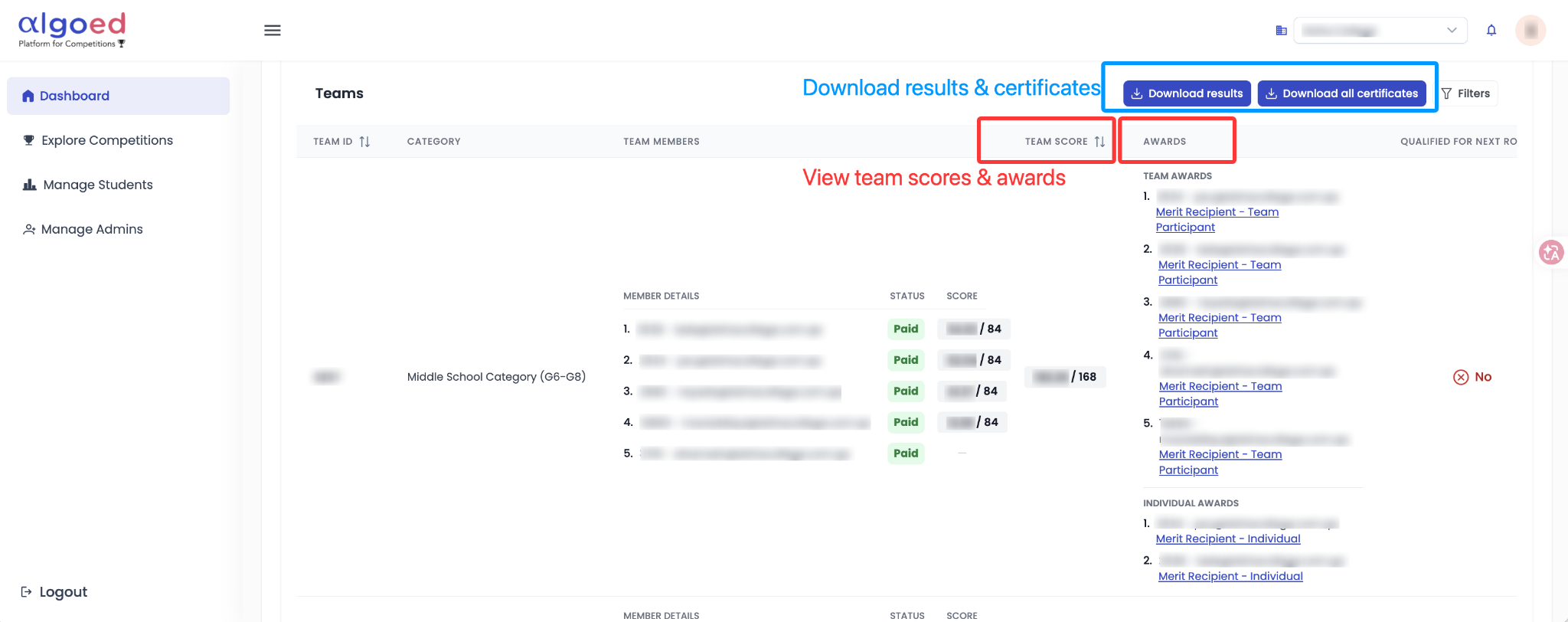
Option 1 - Single Competition:
- Go to "Dashboard" and click the competition name.
- Select the round tab: "Preliminary Round", "Semifinal" or "Final". A round with a lock icon has not opened yet.
- Scroll down to the "Teams" table.
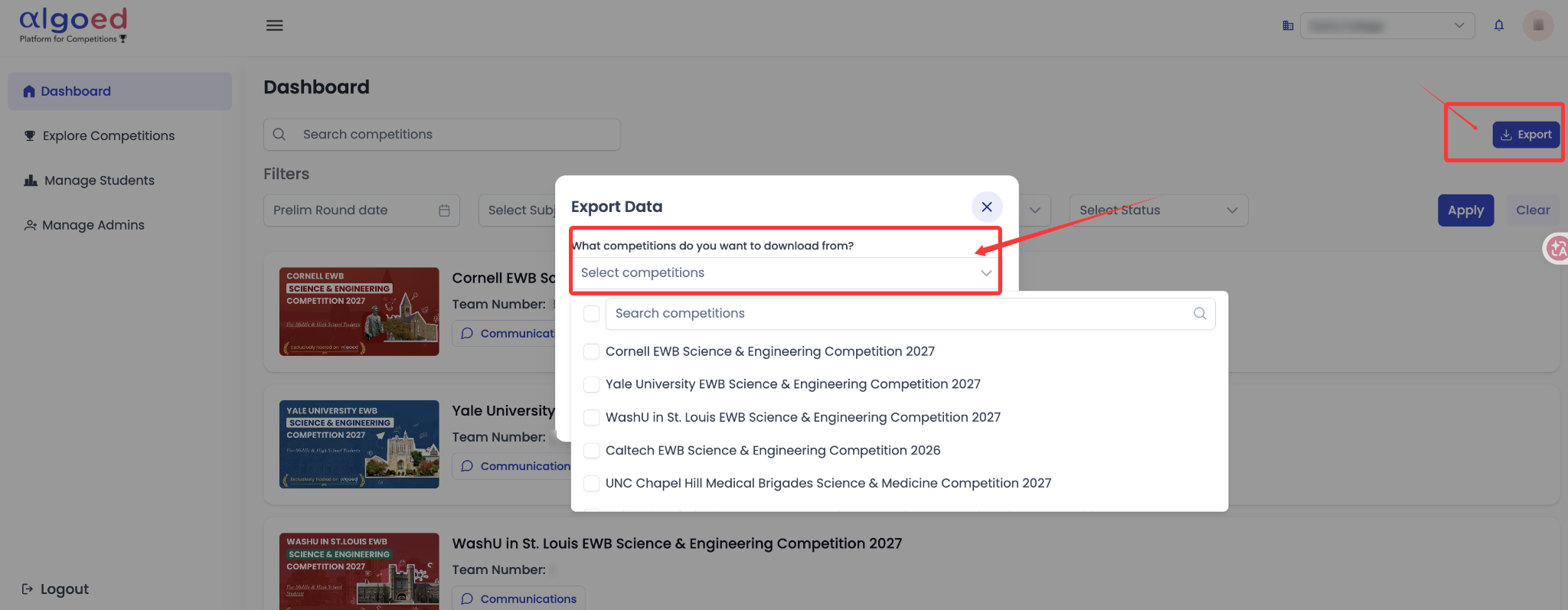
Option 2 - Multiple Competitions:
On the "Dashboard", click "Export" at the top right. Select the competitions you’d like to export results for, then click "Download".
4When will results be available?
You will receive an email when results are available.
5Why does a team show "Not submitted" or no score?
The team may not have submitted an entry for that round or completed registration, such as when members are still marked "Pending".
Only teams that submit an entry for a round are eligible to receive a score and awards for that round.